Okodia Groupshare server for SDL Trados Studio
1. Introduction
This manual is aimed at all resources working with Okodia in projects which include translation memories or termbases from Groupshare. Groupshare is the SDL platform created for centralising and sharing resources and for online project management.
We will see how to add server-based termbases and translation memories to our translation projects so we can use them for concordance, consistency and so on.
IMPORTANT NOTICE! In case you are using Trados Studio 2017 or below, please check this link in case you run into the same issue: https://sdl.service-now.com/kb_view.do?sysparm_article=KB0028513
2. Adding the Okodia Groupshare server to SDL Trados Studio
Explanatory video: https://www.youtube.com/watch?v=blUqiODOjew&t=40s
The first thing you will need to do is to add the Okodia Groupshare server to your server list in SDL Trados Studio. Please follow the steps below:
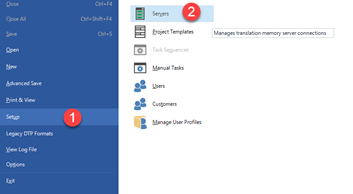
- Go to File > Setup > Servers.
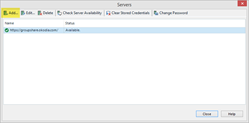
- In the next window you can add the server by clicking the Add button
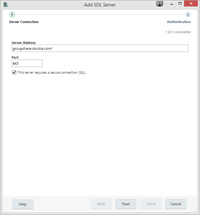
- Now please enter the Okodia Groupshare server details as per below.
- Server address: groupshare.okodia.com
- Port: 443
- Tick the This server requires a secure connection (SSL) box.
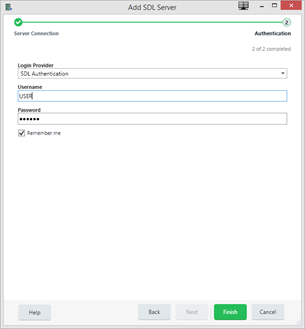
- Then you need to enter your credentials (username and password) as applicable. Press Finish and now the server will be added to your server list.
3. Adding a Groupshare translation memory
3.1 Adding a Groupshare translation memory in the new project wizard
Explanatory video: https://www.youtube.com/watch?v=blUqiODOjew&t=135s
When you are creating a translation project in your local machine following the new project wizard, you can add Groupshare translation memories (TMs) as applicable so you can get suggestions and do concordance searches. For that purpose, please follow these steps:
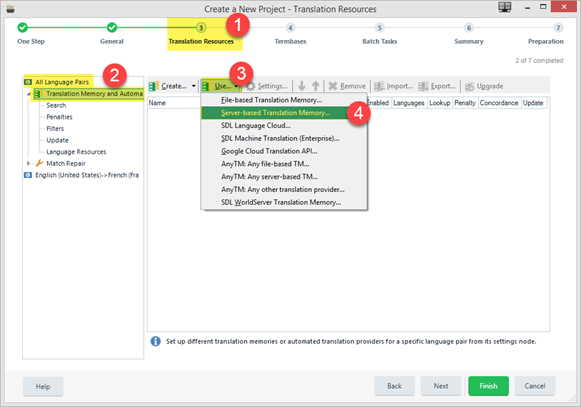
- In the third step of the wizard, Translation Resources, please make sure you are in All language pairs > Translation Memory and Automated Translation, as per steps 1-2 in the screenshot below.
- Now you will need to add the applicable TMs via Use > Server-based translation memory, as per steps 3-4 in the screenshot below.
- In the next window, please choose the Okodia Groupshare server from the dropdown list. If you have not added the Okodia Groupshare server yet, please click the Servers button

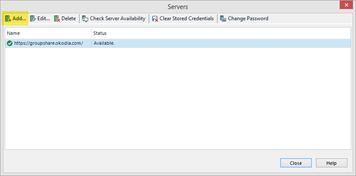
- Now you can add the server by clicking the Add button
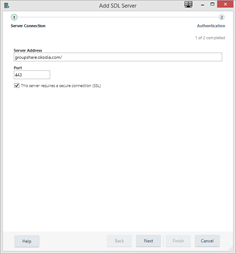
- In the next window, please enter the Okodia Groupshare server details as per below.
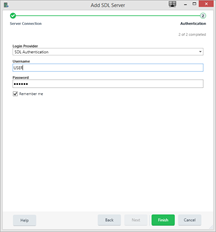
- Then you need to enter your credentials (username and password) as applicable. Press Finish and now the server will be added to your server list.
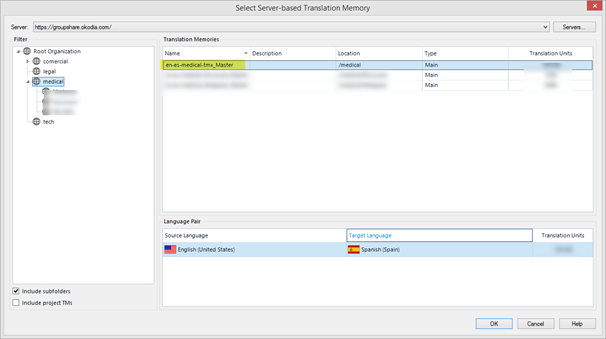
Once the server has been added, you can choose the applicable TM from the list (for example, en-es-medical_tmx-Master) and press OK so that it is linked to the active project.
3.2 Adding a Groupshare translation memory to a translation project
Explanatory video: https://www.youtube.com/watch?v=blUqiODOjew&t=325s
While working in a translation project in your local machine, you can add Groupshare translation memories (TMs) to your project as applicable so you can get suggestions and do concordance searches. For that purpose, please follow these steps:
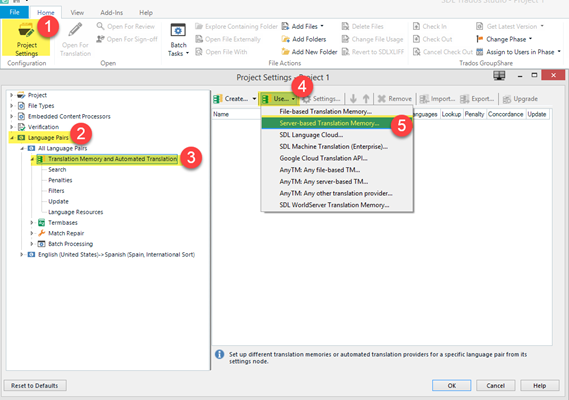
- In your project, open Project Settings and then go to Language Pairs > All language pairs > Translation Memory and Automated Translation, as per steps 1-3 in the screenshot below.
- Now you will need to add the applicable TMs via Use > Server-based translation memory, as per steps 4-5 in the screenshot below.
- In the next window, please choose the Okodia Groupshare server from the dropdown list. If you have not added the Okodia Groupshare server yet, please click the Servers button

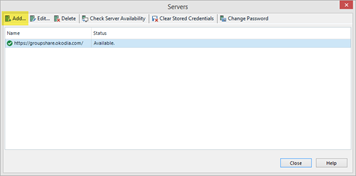
- Now you can add the server by clicking the Add button
- In the next window, please enter the Okodia Groupshare server details as per below.
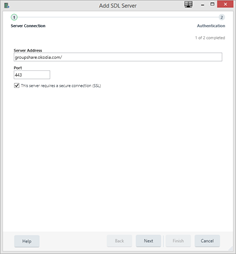
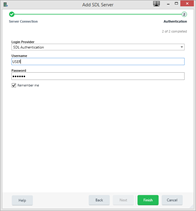
- Then you need to enter your credentials (username and password) as applicable. Press Finish and now the server will be added to your server list.
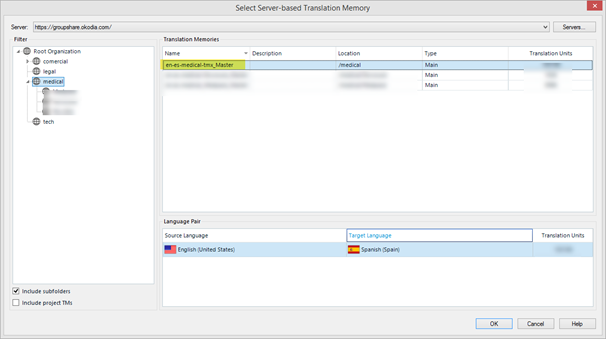
Once the server has been added, you can choose the applicable TM from the list (for example, en-es-medical_tmx-Master) and press OK so that it is linked to the active project.
4. Adding a working translation memory to a translation project
Explanatory video: https://www.youtube.com/watch?v=blUqiODOjew&t=160s
Due to restrictions in the Groupshare translation memories permissions, you will NOT be able to commit new or updated segments to the Master TM. The Master TM is updated once or twice a month by the TM manager, who is the only user that has such TM permissions.
However, so that you can get suggestions from the TM regarding segments you have translated or changes but which are not in the Master TM yet, we suggest that you create a temporary, working TM that can be populated with these segments in the meantime. For that purpose, please follow the steps below:
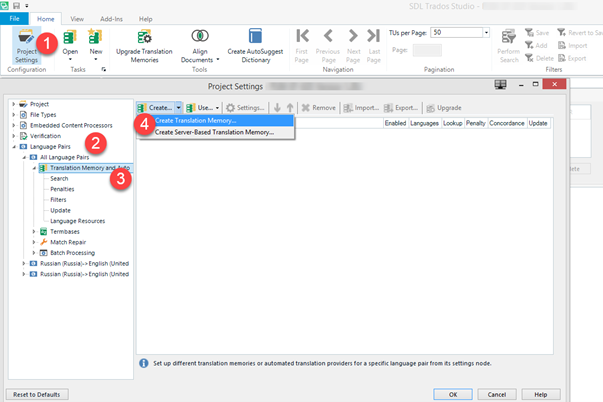
- In your project, open Project Settings and then go to Language Pairs > All language pairs > Translation Memory and Automated Translation, as per steps 1-3 in the screenshot below.
- Now you will need to add the applicable TMs via Create > Create Translation Memory, as per step 4 in the screenshot below.
- Give a name to this TM and select the path where you want to store and press Finish, as per in the screenshot below.
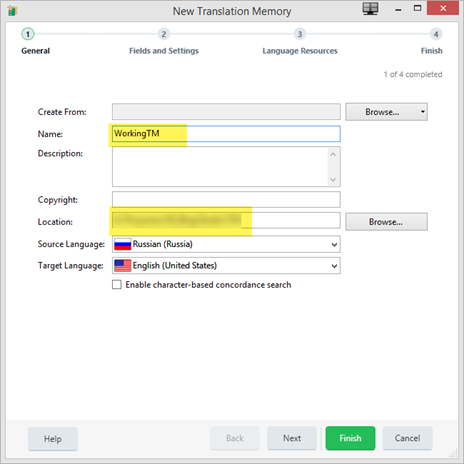
- The new TM will appear now in the list of TMs linked to this project. Please make sure that the Concordance and Update checkboxes are enabled so you can perform concordance searches and update the TM with new or changed segments, respectively.

5. Adding a Groupshare termbase
5.1 Adding a Groupshare termbase in the new project wizard
Explanatory video: https://www.youtube.com/watch?v=blUqiODOjew&t=216s
When you are creating a translation project in your local machine following the new project wizard, you can add Groupshare termbases (TBs) as applicable so you can get terminology suggestions and use the Terminology Verifier QA engine in order to keep consistency. For that purpose, please follow the steps below:
- In step 4 of the project wizard, Termbases, click Use and then on Server-based MultiTerm termbase, as per steps 1-3 in the screenshot below.
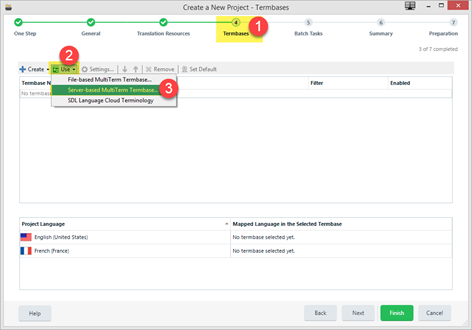
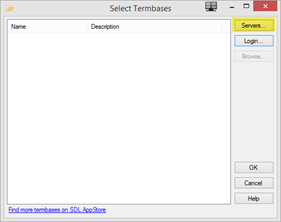
- If you have not added the Okodia Groupshare server yet, please click the Servers button in the Select Termbases window
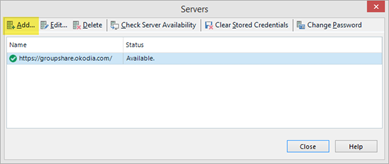
- Now you can add the server by clicking the Add button
- In the next window, please enter the Okodia Groupshare server details as per below.
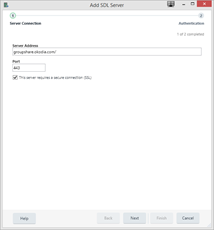
- Then you need to enter your credentials (username and password) as applicable. Press Finish and now the server will be added to your server list.
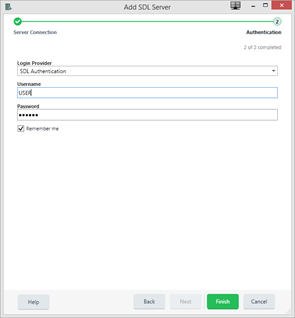
- Once done, it is of outmost importance to check 5.3 Selecting the language variant.
5.2 Adding a Groupshare termbase to a translation project
Explanatory video: https://www.youtube.com/watch?v=blUqiODOjew&t=325s
While working in a translation project in your local machine, you can add Groupshare termbases (TBs) to your project as applicable so you can get terminology suggestions and use the Terminology Verifier QA engine in order to keep consistency. For that purpose, please follow the steps below:
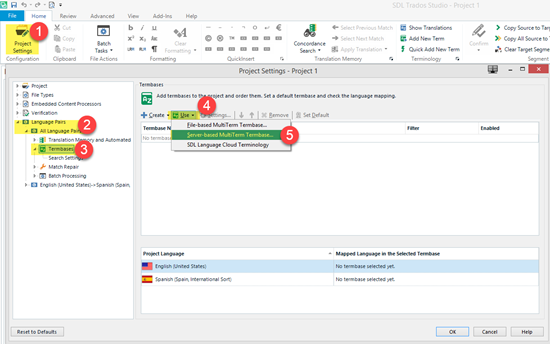
- In your project, open Project Settings and then go to Language Pairs > All language pairs > Termbases, as per steps 1-3 in the screenshot below.
- Now you will need to add the applicable TBs via Use > Server-based MultiTerm termbase, as per steps 4-5 in the screenshot below.
- If you have not added the Okodia Groupshare server yet, please click the Servers button in the Select Termbases window
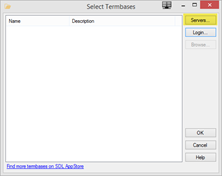
- Now you can add the server by clicking the Add button
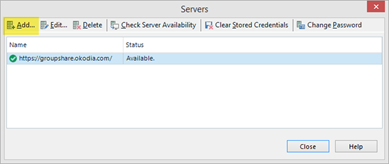
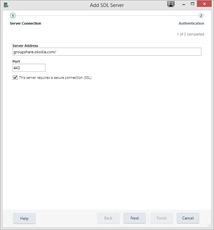
- In the next window, please enter the Okodia Groupshare server details as per below.
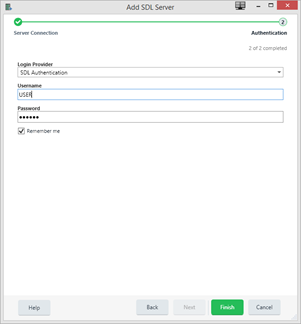
- Then you need to enter your credentials (username and password) as applicable. Press Finish and now the server will be added to your server list.
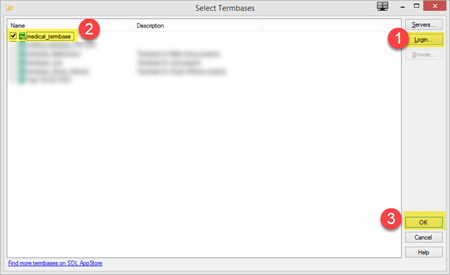
- Once the server has been added, go back to the Select termbases window, click on Login, choose the applicable TB from the list (for example, medical_termbase) and press OK so that it is linked to the active project.
- Once done, it is of outmost importance to check 6.3 Selecting the language variant.
5.3 Selecting the language variant
Explanatory video: https://www.youtube.com/watch?v=blUqiODOjew&t=255s
When adding a Groupshare termbase to a project, Studio checks the languages from the termbase and automatically links the languages and variants matching the source and target languages of the specific project. If the specific language variant is missing in the termbase, Studio will use another variant from the termbase instead, if applicable.
Please bear this in mind, as you may need to change this depending on the project specific settings. As per our internal processes, our projects or/and our TMs are normally set up using “generic” source language variants, i.e. English is normally EN-US and Portuguese is PT-PT. Our Trados packages or SDLXLIFFs will be set up that way and, if you create the translation project yourself, you will use that source language setting in order to be able to use the relevant TM. However, for the TB, it will be better to have it set up with the specific source variant present in the source document (otherwise, the right term suggestions will not come up). If the source document uses a different variant from the one present in the project/SDLXLIFF setting, please modify the language variant as needed.
For this purpose, you can select the correct language and variant from the picklist placed on the right side of the Mapped Language in the Selected Termbase column.
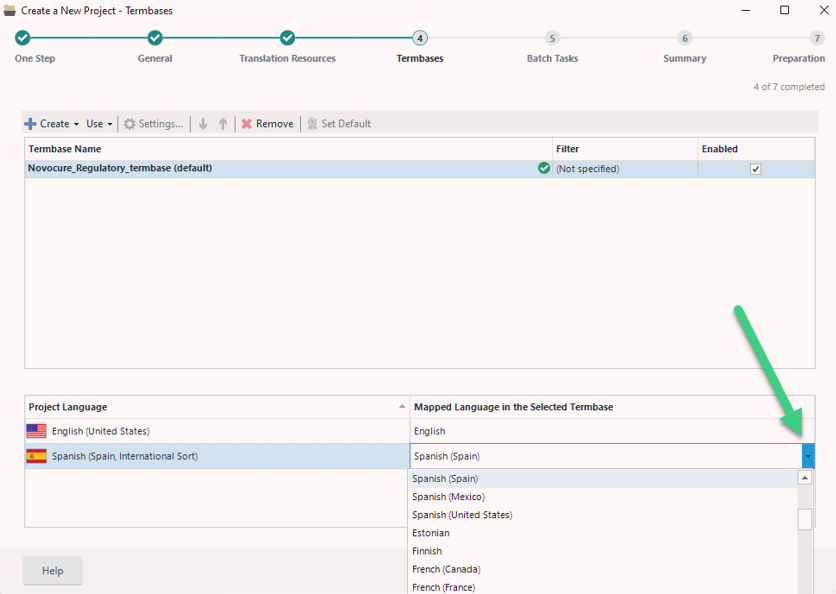
(Screenshot from the Project creation Wizard)
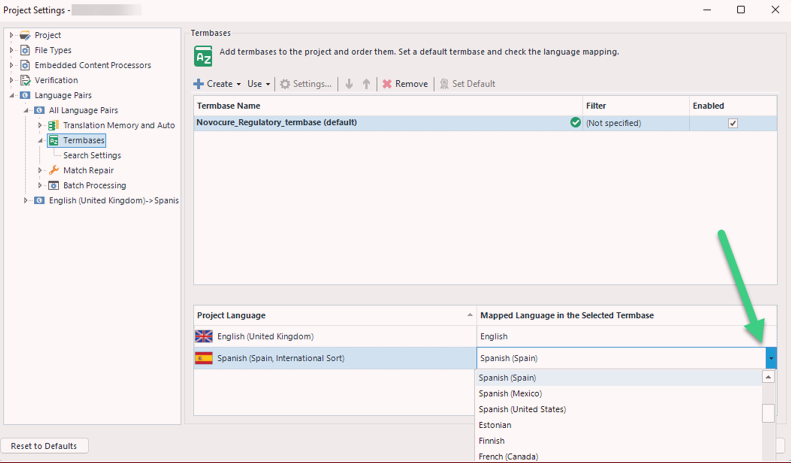
(Screenshot from the Project settings if the project is already created)
This way, Studio will ignore the language pair from the project and use the selected language pair when providing suggestions from the termbase. When needed, please remember to change this setting before you begin the translation, so that you get the correct terminology suggestions right from the start.
6. Viewing the terms and details from a termbase in a translation project
Explanatory video: https://www.youtube.com/watch?v=jJ_nBli17Vo
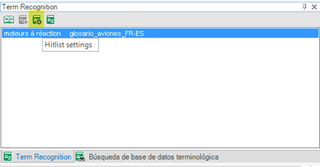
By default, when Studio displays terms in the Term Recognition window, there is no further information available, such as notes, definition, context or other (the fields will vary depending on each particular terminology base), so we would like you to set up two fields: notes and forbidden terms. To do this, first press the Hitlist settings button (the third from the left) in the Term Recognition window, as shown in the screenshot below.
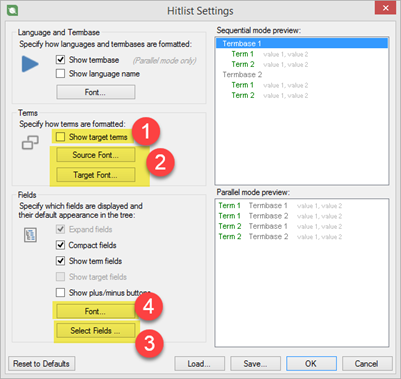
In the next window, we will need to check the Show target terms check box (1), which will allow you to configure any preferential format for the recognised terms (2), such as the font type, size and colour. In Select fields (3), please select the two fields we would need you to see while translating (if both are present in that TB): notes and forbidden terms. This way, this information will come up in the Term recognition window. If you wish, you may also configure the font for those fields (4). For example, the red colour could be used to point out the forbidden or valid terms.
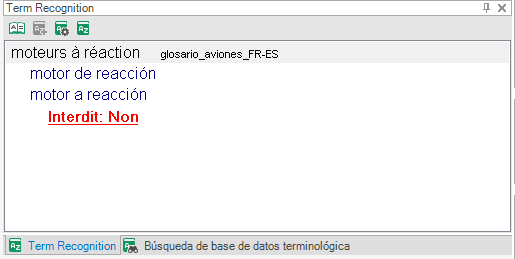
The following screenshot shows the same term once we have adjusted all the options to our liking: