
Find the relevant Translation Memory (TM) and Termbase (TB)
Once you begin to work with Okodia you may be given access to some different platforms to carry out your assignments.
Since we work with many translators, each of them using different CAT tools and processes, we try to give everyone the possibility to work the way it is best for them. For this reason, we generally don’t send Trados packages (unless specifically requested) or offline Translation Memories (TMs) / Termbases (TB) with each request.
In this sense, whenever you receive a translation assignment, the relevant Statement of Work or Request information may indicate the name of the Translation Memory (TM) to use as well as the name of the Termbase (TB) to use.
Where can I find the relevant TM?
Once you know the name of the Translation Memory (TM) and Termbase (TB) you have 2 different possibilities, depending on your preferences:
Trados Groupshare (online mode)
We upload and keep updated our main TMs into our Groupshare server. This way, it should be easier for all translators to work using our very latest updated TMs and Termbases, instead of looking for them into our local server.
It is important to know that, in order to keep control over our TMs, we don’t allow them being updated during translation process, therefore you may need to add an additional temporary local empty working TM.
For a complete (but quick and easy!) guide about how to connect to our Groupshare server, add the relevant TMs/TBs and create working TMs for your project, please check this post.
Owncloud server (offline mode and non-Trados users)
In order to download the offline Translation Memories (TMs) and Termbases (TBs), particularly for non-Trados users, you may have been given access to: https://sharepoint.okodia.com/owncloud/. In case you have not been given access here and you need it, please ask to your relevant PM.
Once you log in with your credentials you will see a list of folders after clicking here:
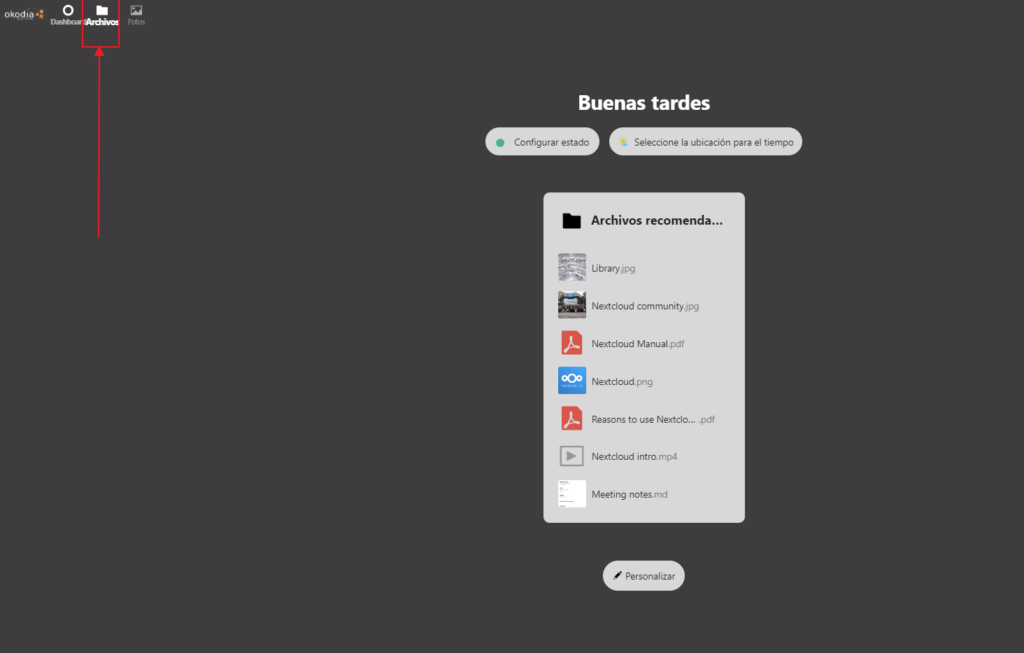
Depending on your usual languages translations and fields of translations, you may find 1 or more folders with TMs. They are all named something as follows:
AB-CD-Field, where:
- AB = source language
- CD = target language
- Field = field of expertise
Inside each folder, you’ll find several other folders, in case there is a client-specific TMs for that field of expertise, as well as the field-generic Master TM:
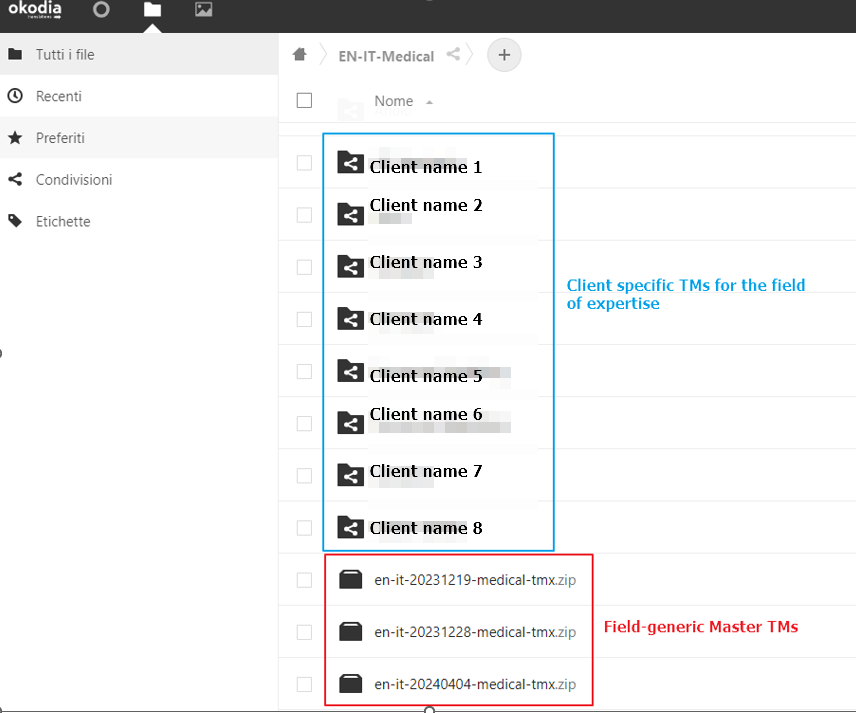
For each relevant folder or for each relevant generic TM you’ll find the last 3 updated versions, according to their last update:
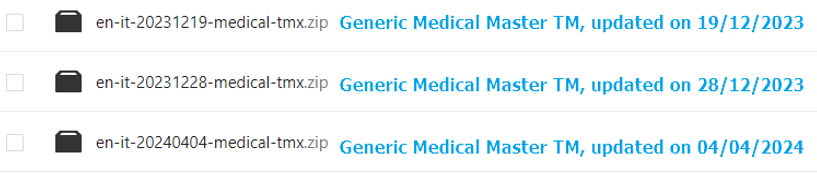
Inside each .zip file you’ll find the TMs as .tmx files that you can import in your CAT tool.
Where can I find the relevant TB?
Once you log in with your credentials you will see a list of folders after clicking here:
Among the different folders, you’ll see the one named «Terminology»:
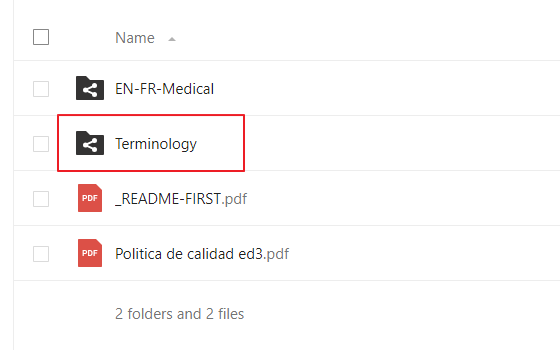
Inside the «Terminology» folder you’ll see a list of different customers, each of them having 2 more folders: memoQ and Multiterm.
You’ll need to click on the one that matches your CAT tool and download the file that your CAT tool requires in order to import the termbase. Please make sure to use the most updated one.