
Instructions for Tracked-changes (TC) jobs + Changing Author name / Word username
- Open a Word file > Review menu > Track changes

Once activated, all the changes you do in the text will be identified with your Word username.
Due to confidentiality purposes, we need your changes to be registered as «Translator» or «Reviewer» / «Editor» (please choose the right username according to your exact role in the request).
In order for this to be set up correctly, you will have to change your Word username before you start implementing the changes.
- Open a Word file > File menu > Options > General > change username to «Translator» or «Reviewer» / «Editor».
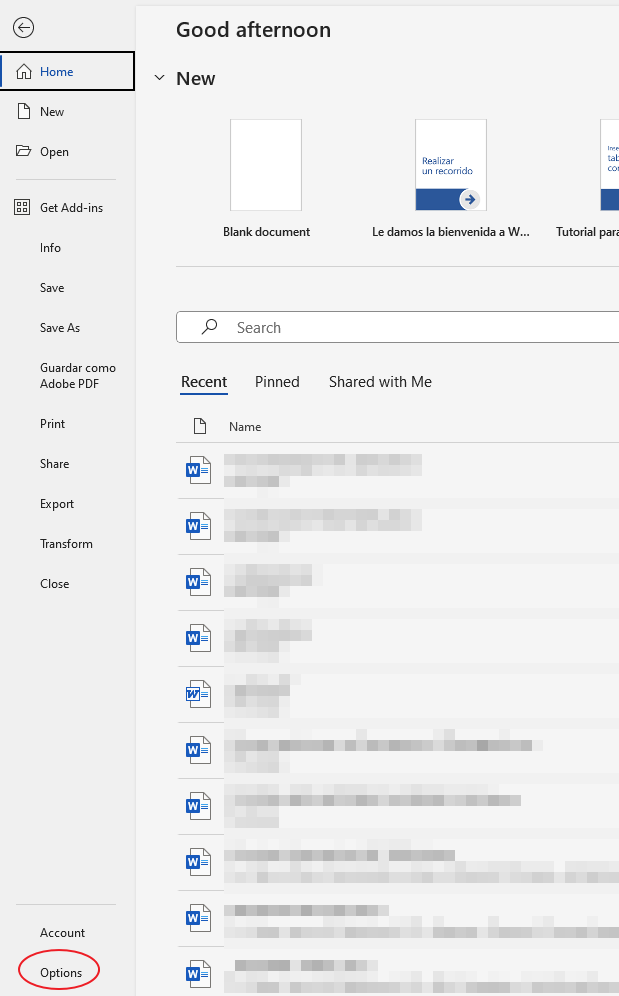
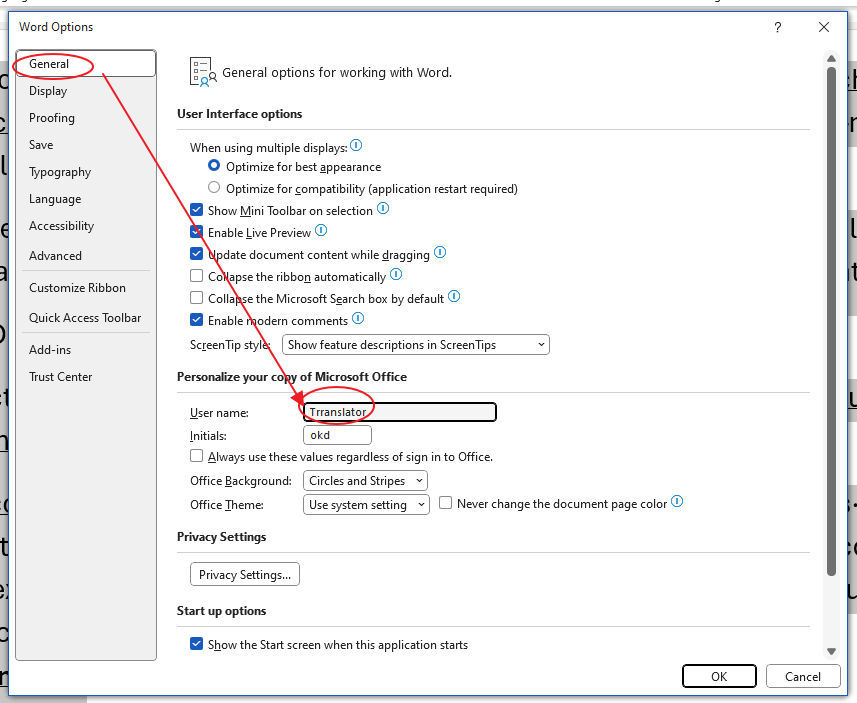
Now you can activate the track changes feature and start working on the request.
Please note it is absolutely forbidden to:
- Apply changes in the text with the track changes feature off (unmarked).
- Apply changes in the text which is not shown as track change in the original document, even if you believe it is advisable. In such cases, please add a comment to let us know of any additional change you may suggest.
If during your work on the documents you find any mismatching text between source and translated document (which is not marked in track changes), or any finding worth mentioning, please let us know as soon as possible.
Terminology
The main guideline regarding terminology in track changes requests is that the new texts which will be added in track changes in the translation to be updated should be consistent with the terminology already present in that text. In case of doubt, please check with the relevant Project Manager.