
Trados Team for SDL Trados Studio
English
Receiving invitation
First of all, you will receive an invitation email from Trados Team, with the following subject: “You have been invited to Trados account”. This email invites you to join the new server account, called OkodiaTT. Simply click on the link with your usual Trados account and you’re done 🙂
Connecting your Trados account to our Trados Team (TT) server
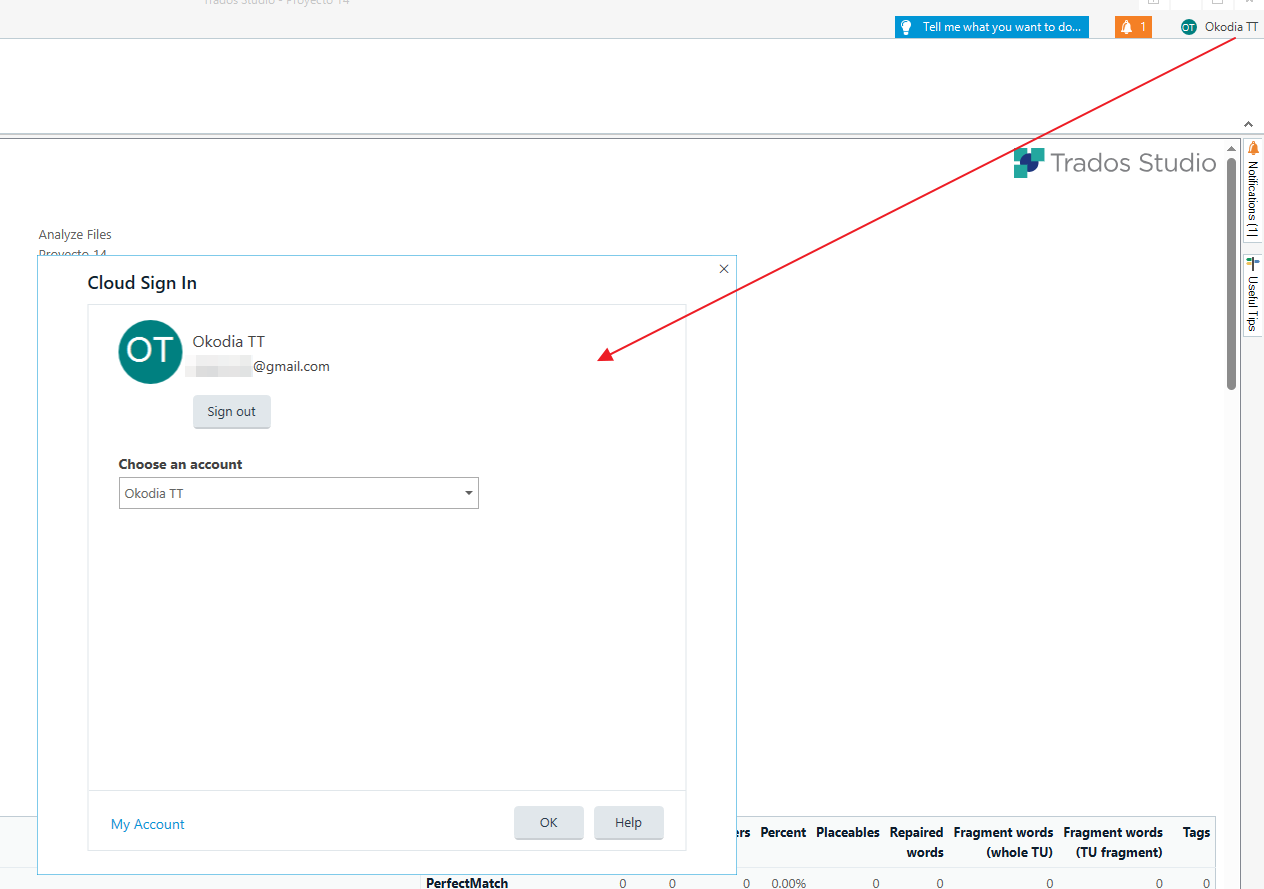
Once you have accepted the invitation, you will have to manually connect your Trados account to this new server. To do that, just click on your profile in the upper right corner and choose “OkodiaTT”.
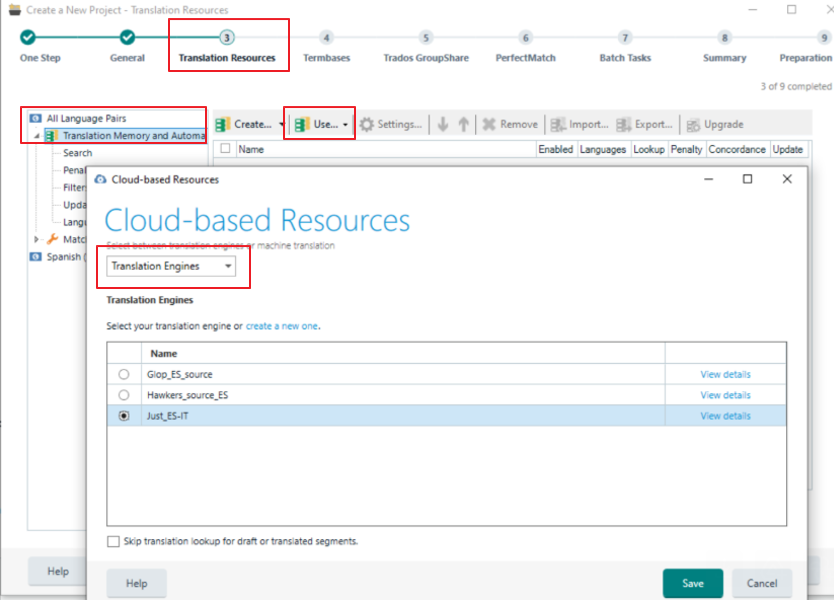
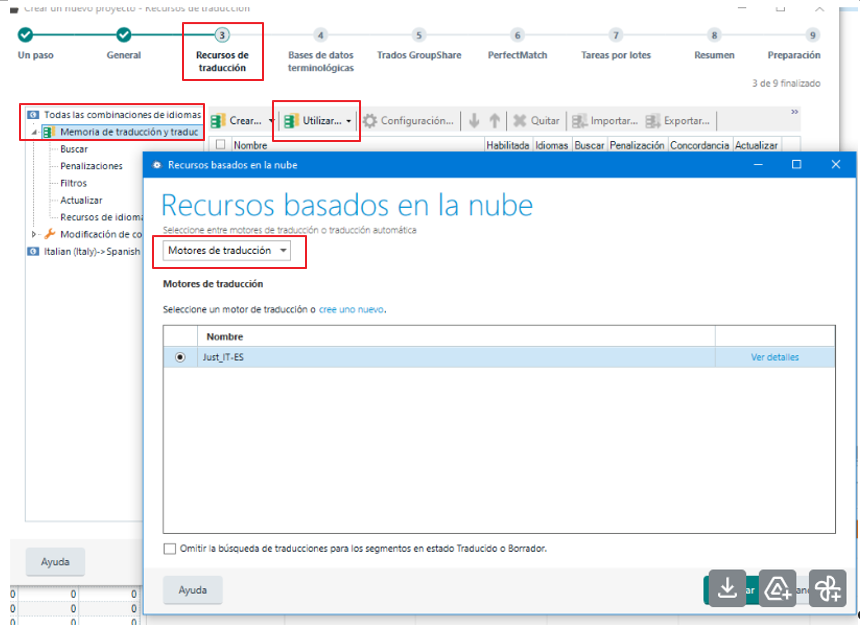
Then, at the step of selecting the TMs/TBs for your jobs, you will need to click on “Cloud-based resources” and select “Translation Engines”. Remember that you must select these files from the “All languages pairs” option:
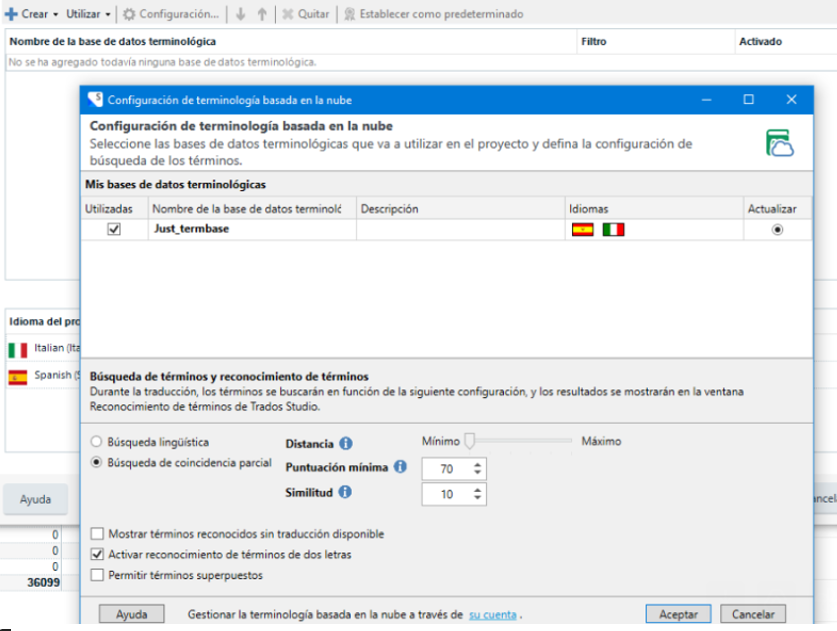
It works exactly the same for TB. Click on “Cloud-based terminology” and the client’s TB will appear immediately:
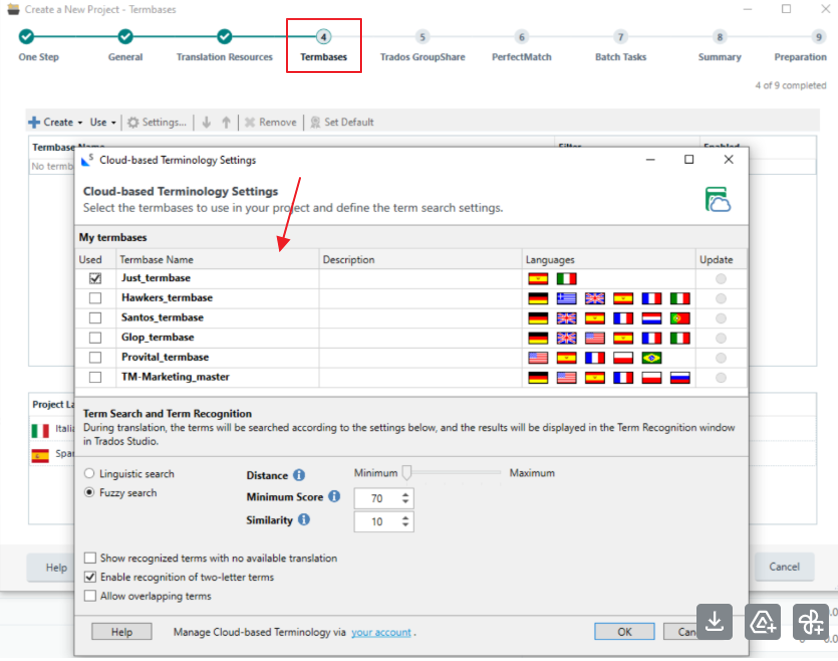
Obviously, in both cases (TM or TB) select the appropriate Translation Memory and/or Termbase.
Once done you should be able to work normally, as usual 🙂
N. B.: For your next project where you need to use a specific TM or TB, try connecting them directly from Trados Team. If you have any questions, let your PM know. We will be very happy to help!
Spanish
Recibir invitación
En primer lugar, recibirás un correo electrónico de invitación de Trados Team con el siguiente asunto: «You have been invited to Trados account». Este correo te invita a unirte a la nueva cuenta de nuestro servidor, llamado OkodiaTT. Simplemente haz clic en el enlace con tu cuenta habitual de Trados 🙂
Conectar tu cuenta de Trados a nuestro servidor de Trados Team (TT)
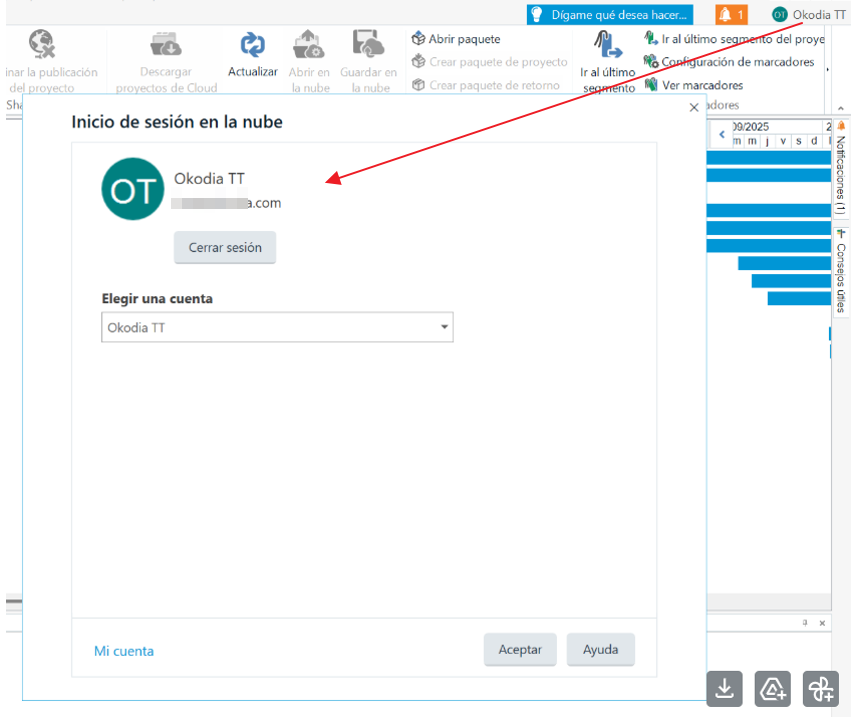
Una vez que hayas aceptado la invitación, deberás conectar manualmente tu cuenta de Trados a este nuevo servidor. Para ello, haz clic en tu perfil en la esquina superior derecha y selecciona «OkodiaTT».
Después, en el paso de seleccionar las TM/TB en la creación de proyectos, haz clic en «Recursos basados en la nube» y selecciona «Motores de traducción». Recuerda que tienes que seleccionar estos archivos desde la opción «Todas las combinaciones de idiomas»:
Funciona exactamente igual para las TB. Haz clic en «Terminología basada en la nube» y ya te saldrán directamente las TB:
Obviamente, en ambos casos (TM o TB), selecciona la memoria de traducción o base de datos terminológica que corresponda.
Una vez hecho esto, ya podrás trabajar con normalidad, como siempre.
Nota: Para tu próximo proyecto ya podrás usar una TM o TB específica conectándolas directamente desde Trados Team. Si tienes alguna pregunta, habla con tu PM. ¡Estaremos encantados de ayudarte!